Create your first submittal
A submittal packages up drawings and materials, routes them to the firms that need to approve them, and tracks every decision in one place. This works within your firm or across firms on the same project.
- 1
Start a new submittal
Go to Submittals and click New submittal. The same button is in the empty state under No submittals yet.
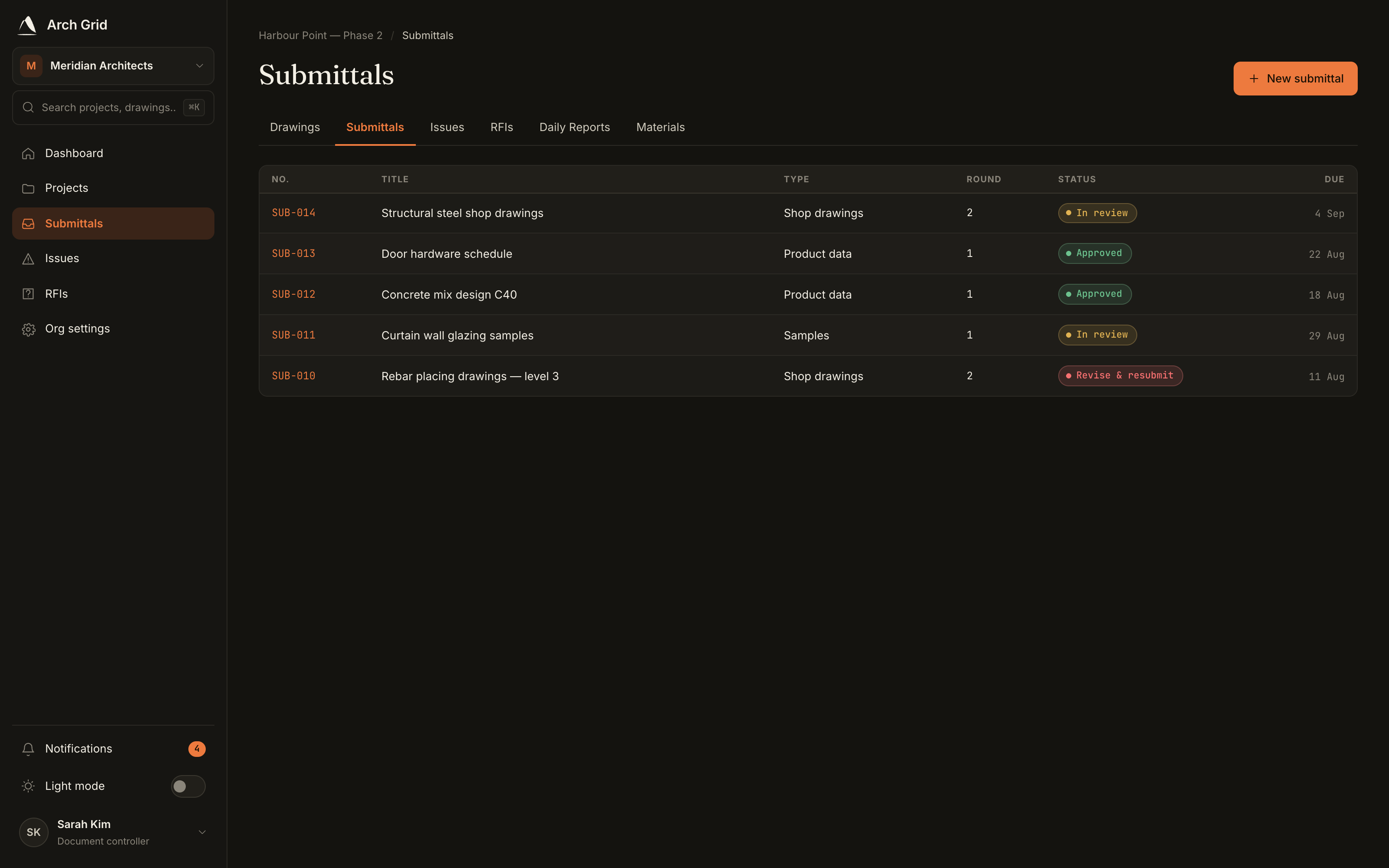
The Submittals page with the New submittal button. - 2
Pick the project and sending organization
Under Project & sender, choose the Project and the Sending organization. Only orgs you belong to that participate on the chosen project can send.
- 3
Fill in the package details
Give it a Title, choose a Type (Shop drawings, Product data, Samples, and so on), and optionally add a Category, a Final due date, and a Description for the approvers.
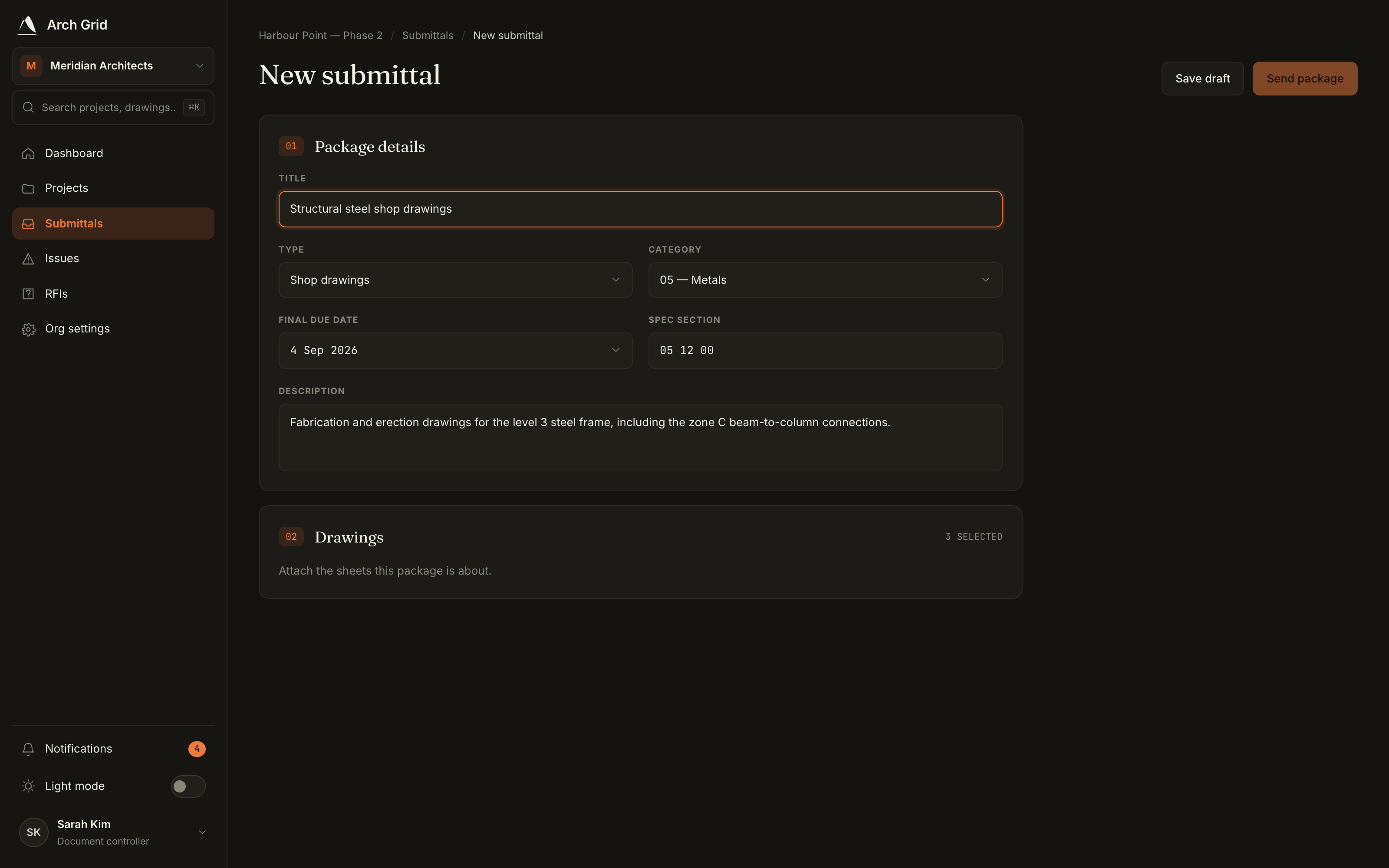
The package details section. - 4
Attach drawings and materials
Tick the Drawings and Materials to include. Only draft drawings from your own folders and materials from your register are selectable, so upload or add those first if the list is empty.

Selecting drawings and materials for the package. - 5
Choose approvers and distribution
Under Approvers, pick the firms that must record a decision before the submittal can close. Under Distribution, add firms that should see it but don't need to approve.
TipLeave Approvers empty for an information-only distribution. Add at least one approver when you want a routed package that has to come back decided. - 6
Send it
Click Send submittal. It opens with the ball in the approvers' court, and you can track their decisions on the detail page.