Disposition and revise-and-resubmit
This is the full submittal lifecycle: an approver records a decision, and if the package is returned, the sender attaches new drawing versions to open the next round. It uses standard construction dispositions.
- 1
Open the submittal you need to review
As an approver, open the submittal. A banner at the top reads Your review is requested and tells you the round it's on. The page adapts to whether you're the sender or a reviewer.
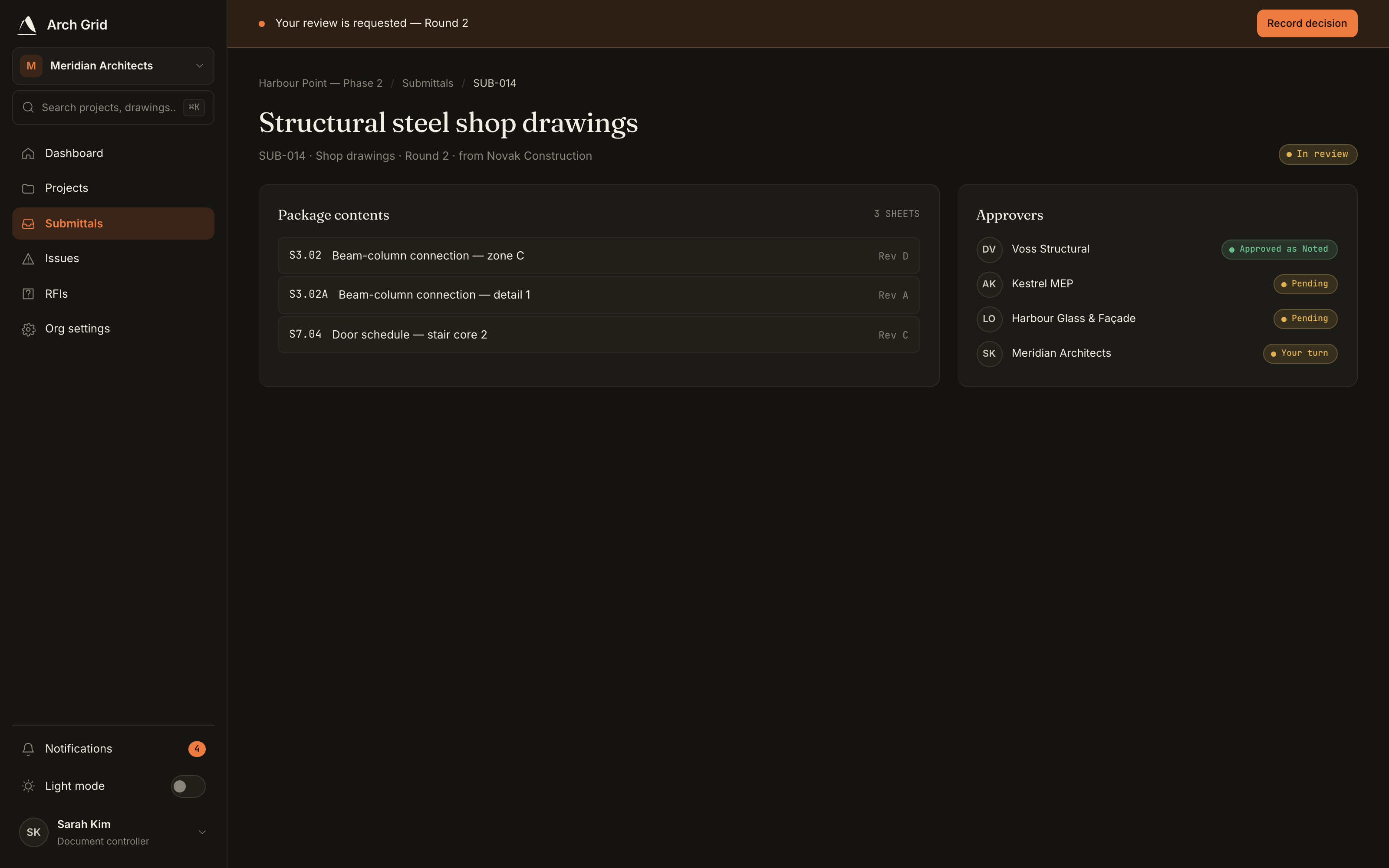
The ball-in-court banner for a reviewer. - 2
Record your decision
Under Record your decision, pick one: Approved (No Exceptions Taken), Approved as Noted (Make Corrections Noted), Revise & Resubmit, Rejected, or For Record Only. Add an optional note and click Submit decision.
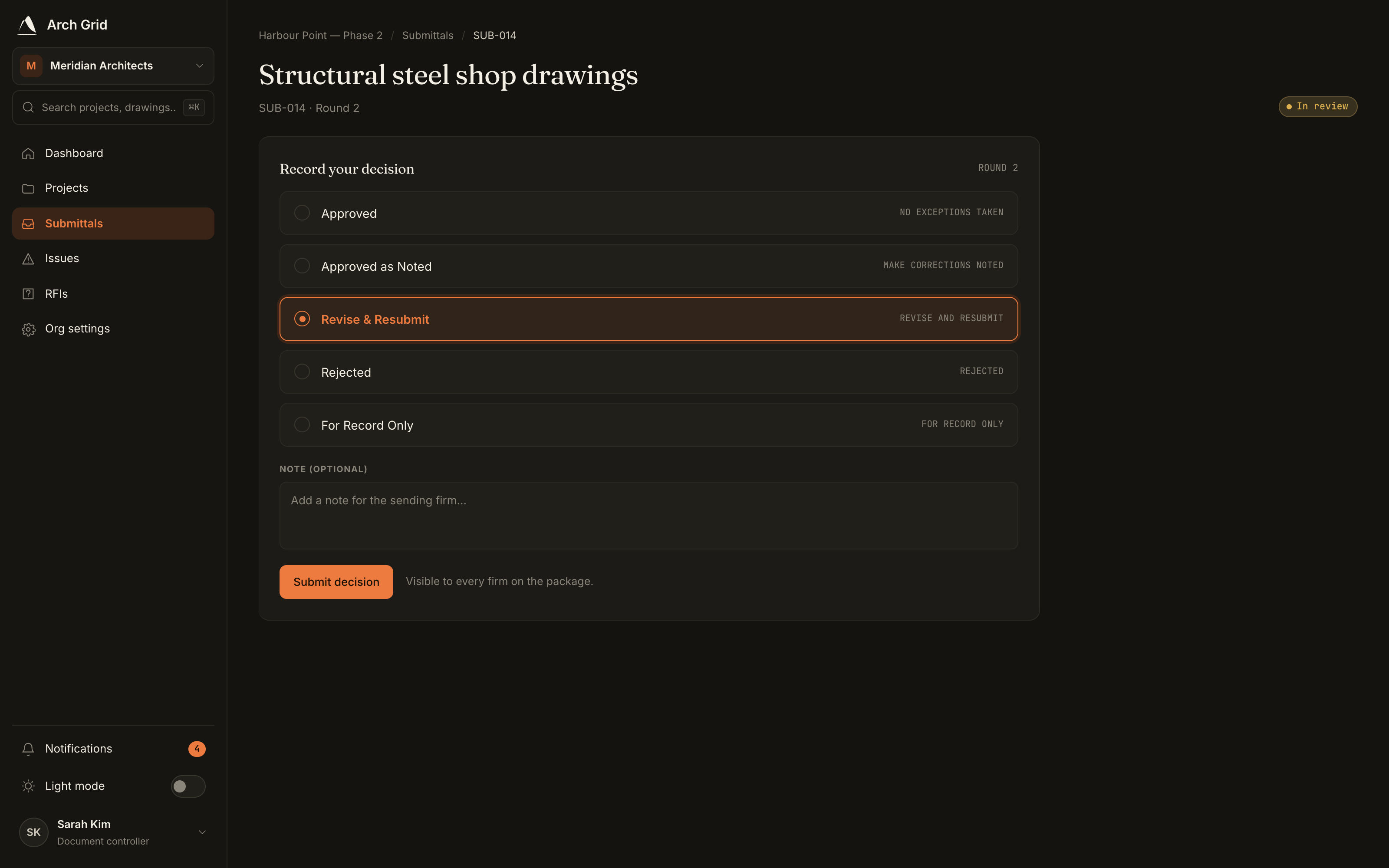
The decision radio cards with an optional note. NoteThese are standard AEC terms. "No Exceptions Taken" means approved as submitted; "Make Corrections Noted" approves with corrections and files for record on resubmit. - 3
Track the approvers
The Approvers card shows a progress bar and each firm's decision for the current round. Every approver has to decide before the package can close.
- 4
Close it or send it back
Once all approvers have decided, the sender sees Close submittal. If the outcome sends it back, the banner reads Returned for revision with the round it closed as.
- 5
Revise and resubmit
When returned, the sender uploads new versions of the affected drawings from the Drawings page, then attaches them here and clicks Resubmit to open the next review round.
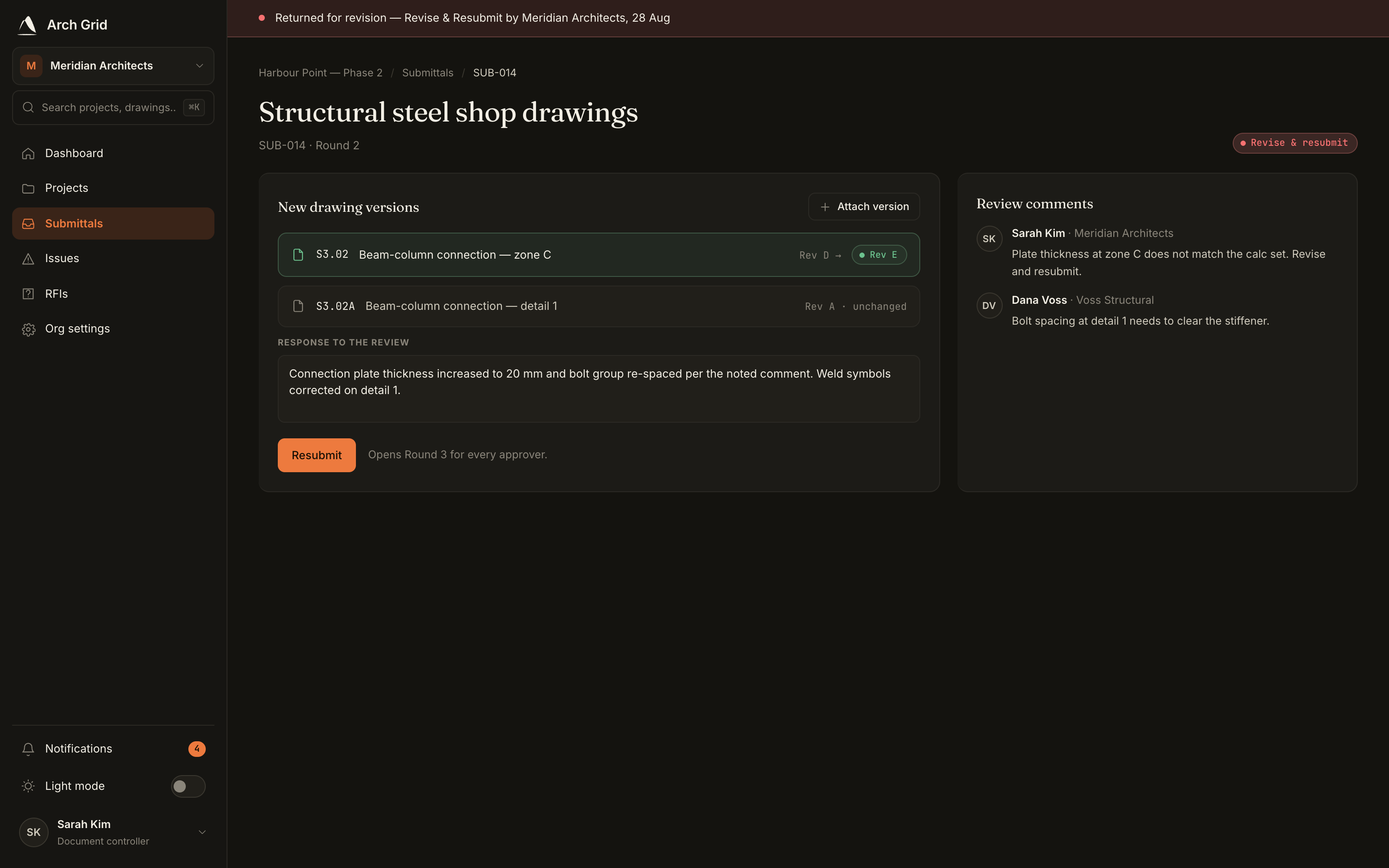
Attaching new drawing versions for the next round. TipOnly the sending firm can resubmit. If the last round closed as "Make Corrections Noted", the resubmit files the corrected drawings for record and closes the submittal instead of opening another round.