Drawing versions and offline sync
Drawings are versioned, so every revision of a sheet is kept and any markup follows the version it was made on. You can also save approved drawings to your device to view them on site without a signal.
- 1
See a drawing's revisions
In the drawings table, each row has a Rev chip. When a sheet has more than one revision, the chip is clickable and opens the version list, newest first, each with its status.
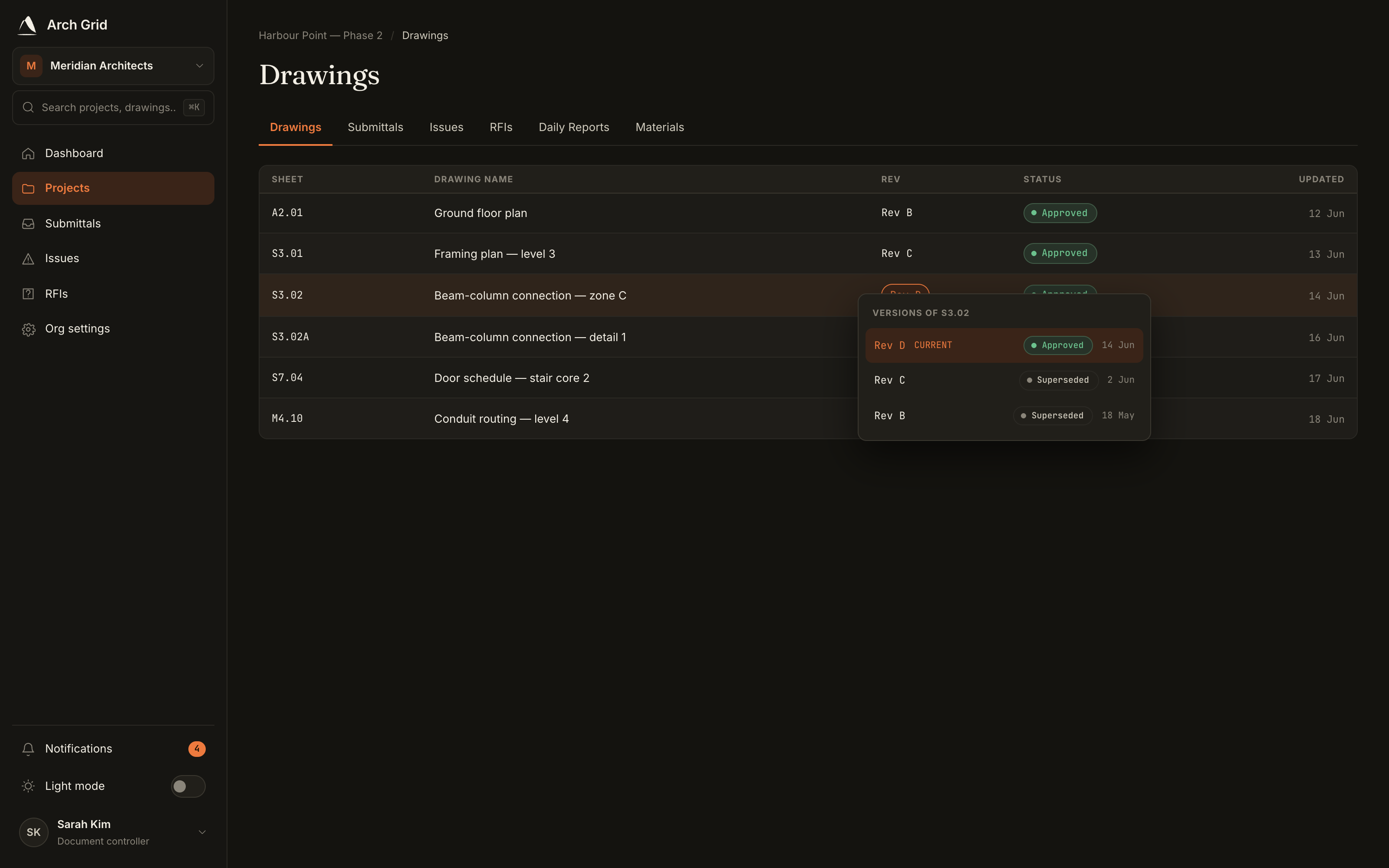
The revision list for a drawing. - 2
Switch to an older version
Click any version to view it. Markup, comments and issues re-project onto whichever version you're looking at. Superseded versions stay visible so the full history is always there.
- 3
Upload a new version
To supersede a sheet, click Upload drawings and upload a PDF using the same sheet number as the existing drawing. Arch Grid recognises the match, marks the prior versions superseded, and makes the new upload the current one.
NoteThere's no separate "add version" button. Re-using an existing sheet number is what creates a new revision, which keeps the history tidy without extra steps. - 4
Save approved drawings offline
Click Save offline to open the Offline drawings panel, then Download for offline use. Approved drawings are cached to your device so you can open them with no connection. Remove from device clears the cache.
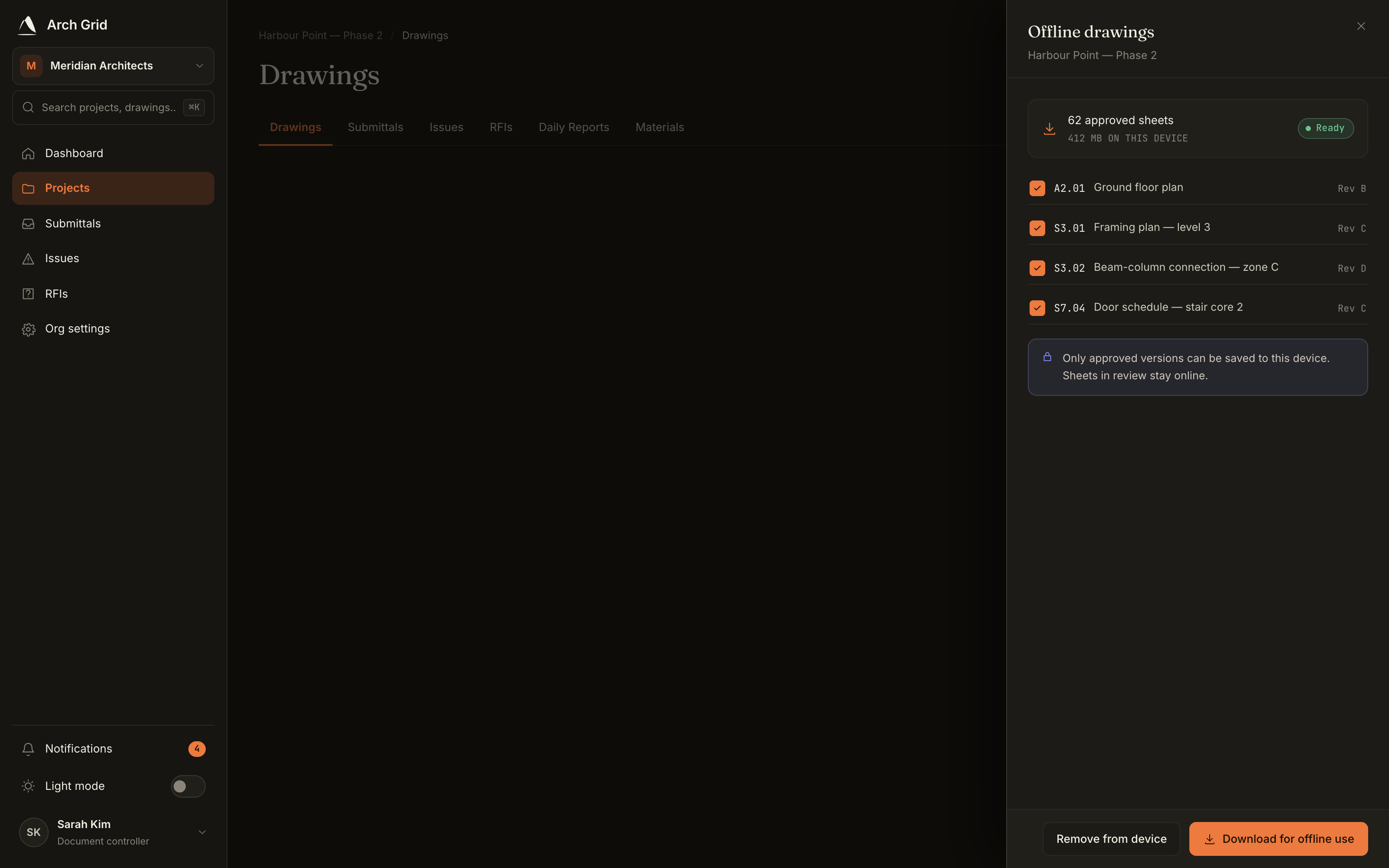
The offline drawings panel. TipOnly approved versions can be saved offline, and the cache lives in the browser on that one device. Photos still need a connection.