Turn on internal manual-approval mode
Not every approval happens inside Arch Grid. Internal mode is a per-project switch that lets an admin set a drawing's or material's status by hand and keep a manual revision history, for approvals that were done off-platform.
- 1
Turn on internal mode for the project
Open the project's Settings and find Internal mode (manual approvals). Switch it on. Once active, your firm's files on this project can be set to internal.
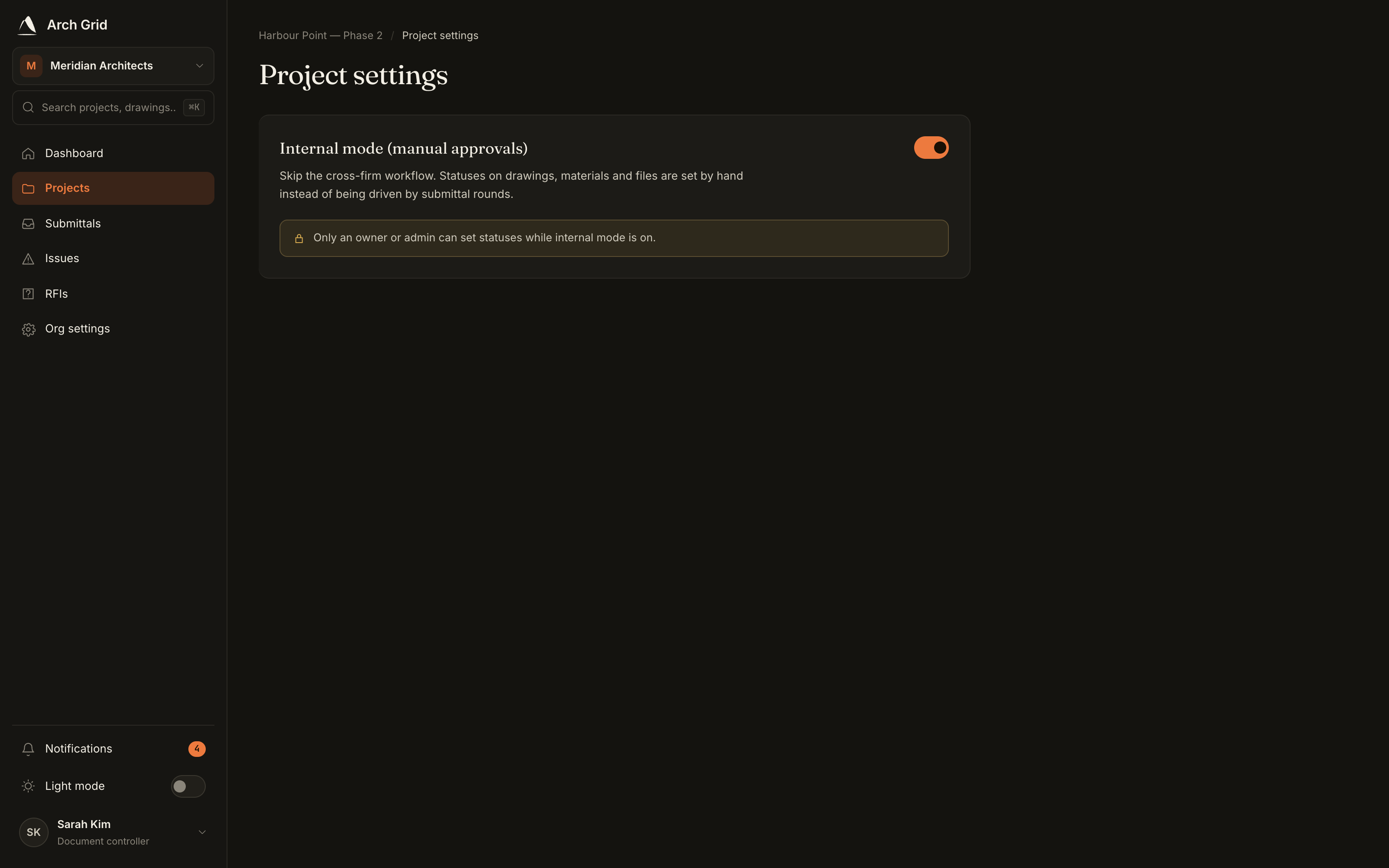
The internal-mode toggle in project settings. NoteOnly an owner or admin can turn internal mode on and set statuses. Everyone else sees the statuses as read-only, stamped with who set them. - 2
Know the two modes
The settings panel explains both. External (the default) means a file's status comes from its linked submittal and is read-only. Internal means the status is self-declared by an admin, editable inline, and shown with a person stamp.
- 3
Switch a file to internal
On a drawing or material, open its row menu and choose Switch to Internal mode. You can do this per file, so some files stay driven by submittals while others are managed by hand.
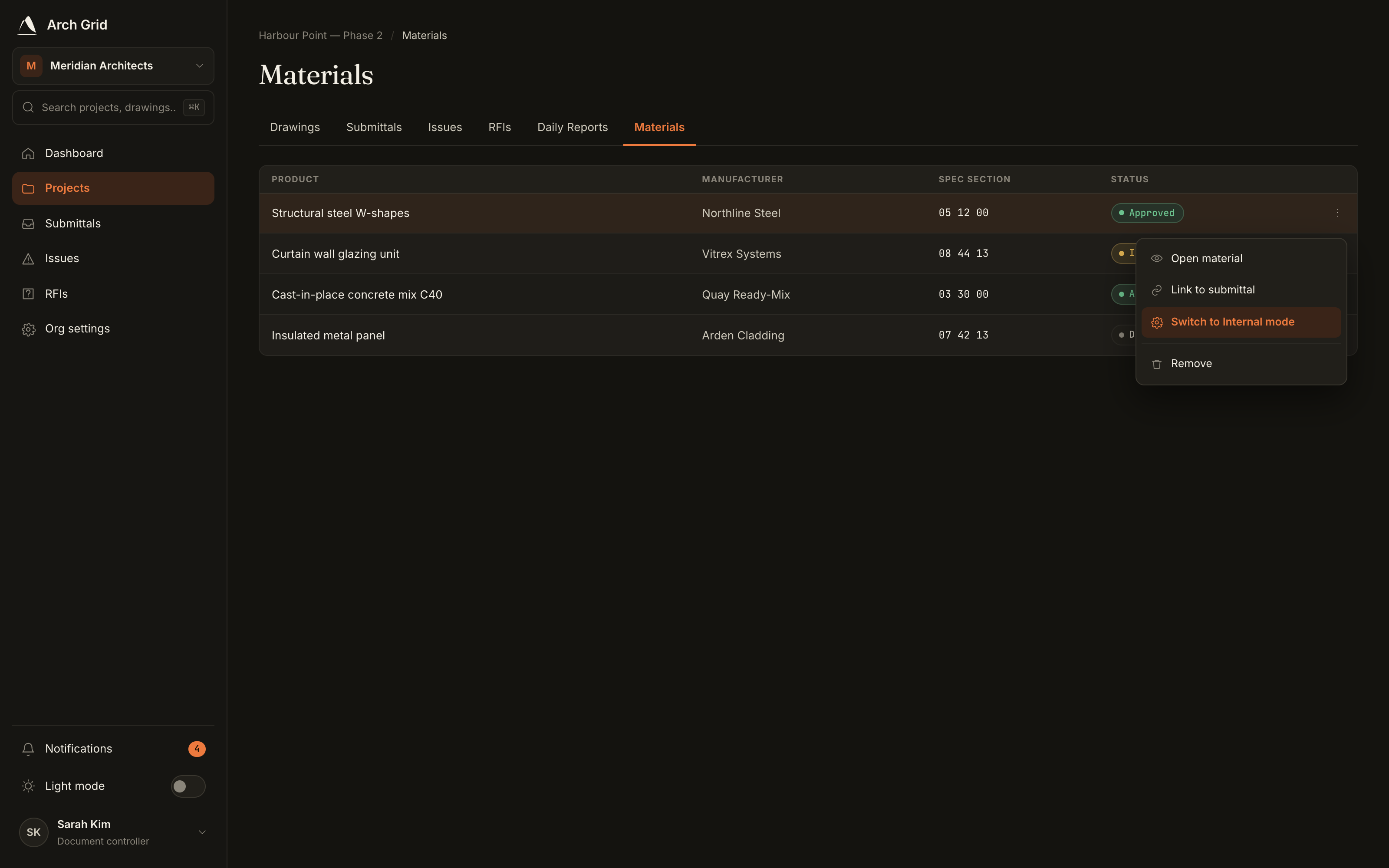
Switching a material to internal mode. - 4
Set the status yourself
For an internal file, set its status directly: Approved, Rejected, Superseded or Open. It's stamped with your name and the date so the provenance is clear to everyone.
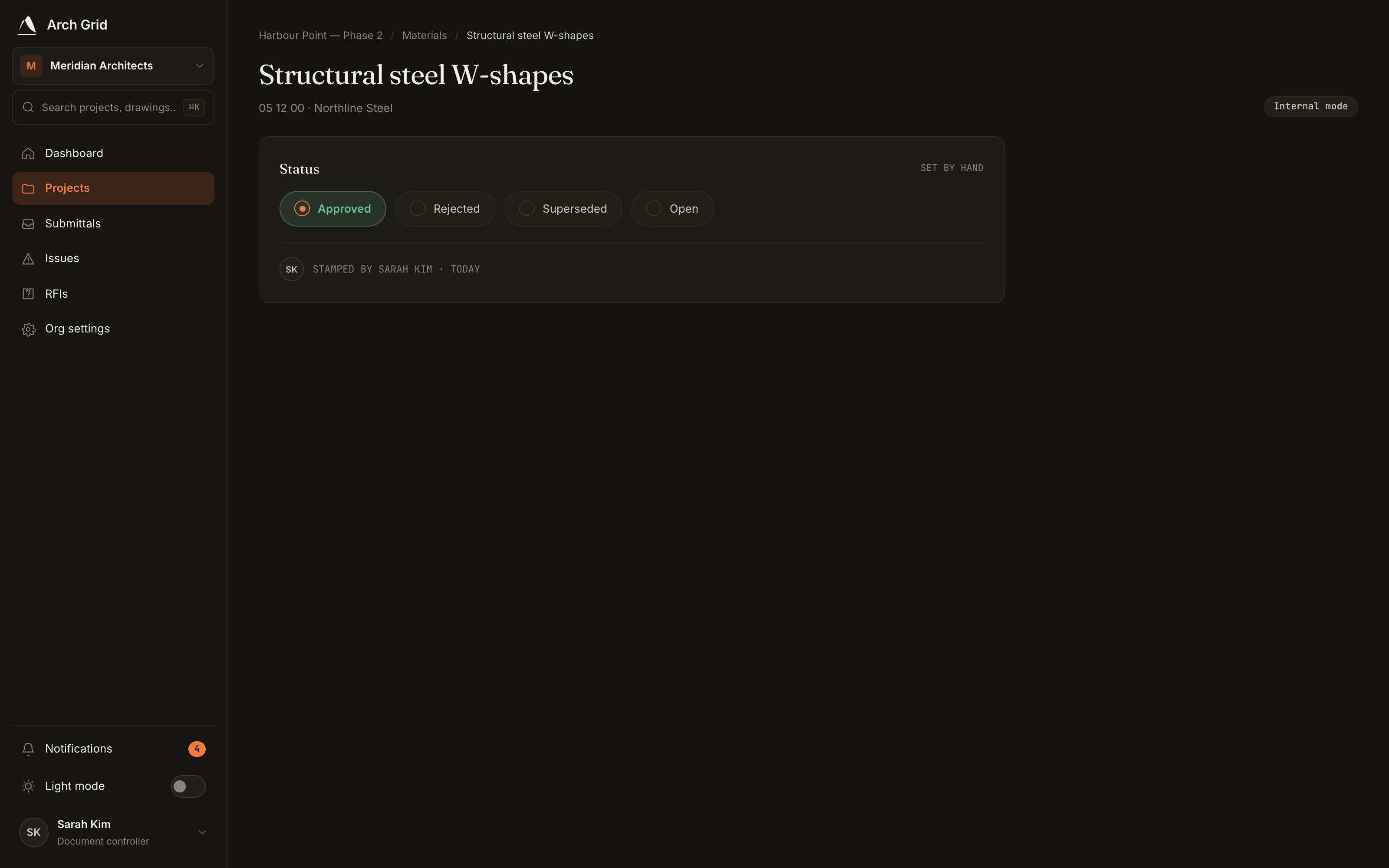
Setting a self-declared status inline. - 5
Keep a manual revision history
Internal files get a Revision history block. Click Add entry to log each revision with its Rev, Date, Description, and who it was By, mirroring how a revision block reads on a real sheet.
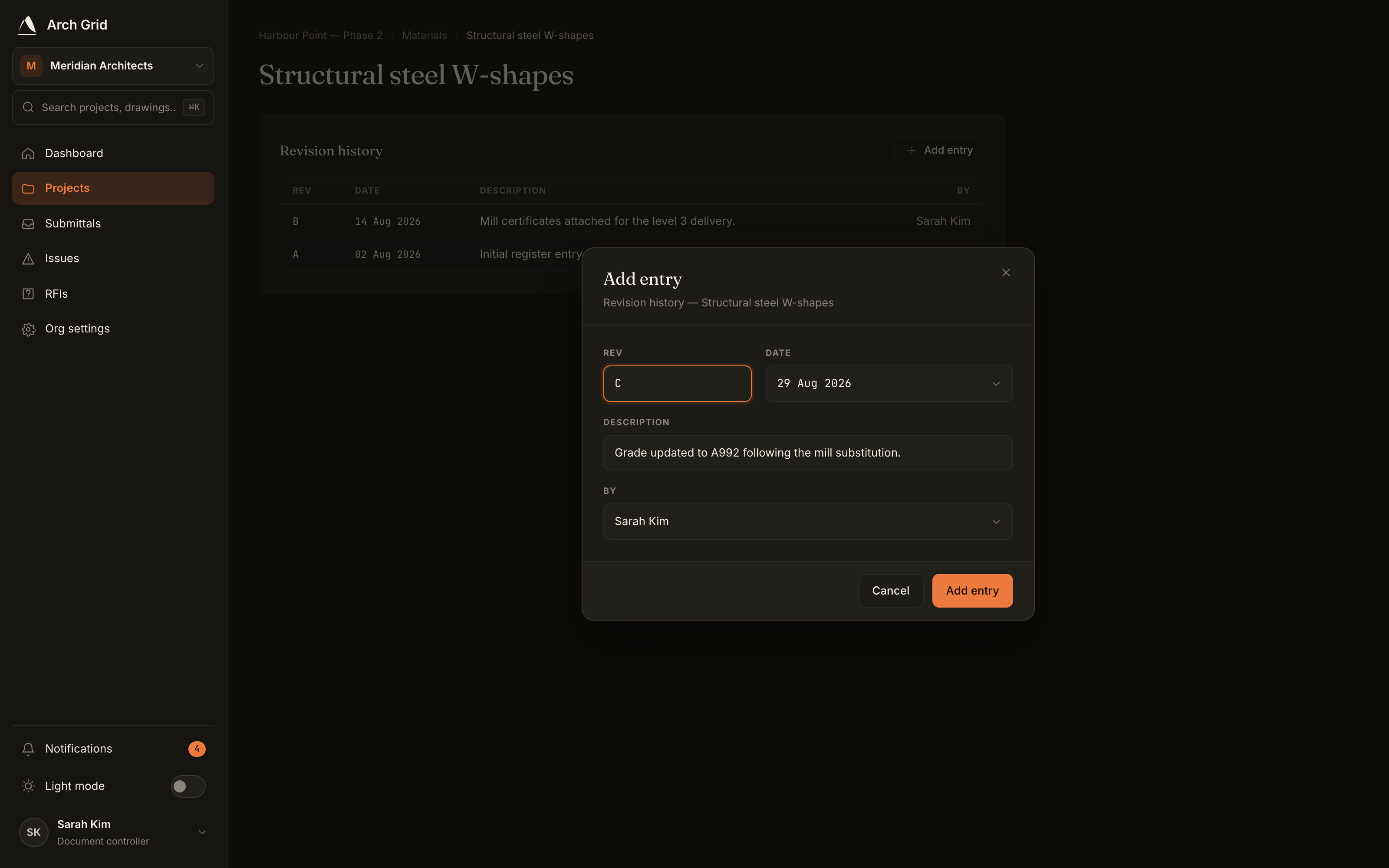
Adding a manual revision entry.