Share folders across organizations
Sharing a folder gives another firm on the project view-and-markup access to every drawing in it, without handing over the ability to change or submit your drawings. It's how partner firms work off the same set.
- 1
Open the Drawings browser and find your folder
Go to a project's Drawings and find the folder you want to share in your firm's section of the folder tree.
- 2
Open the folder menu
Hover the folder row, open its menu (the three dots), and choose Share folder.
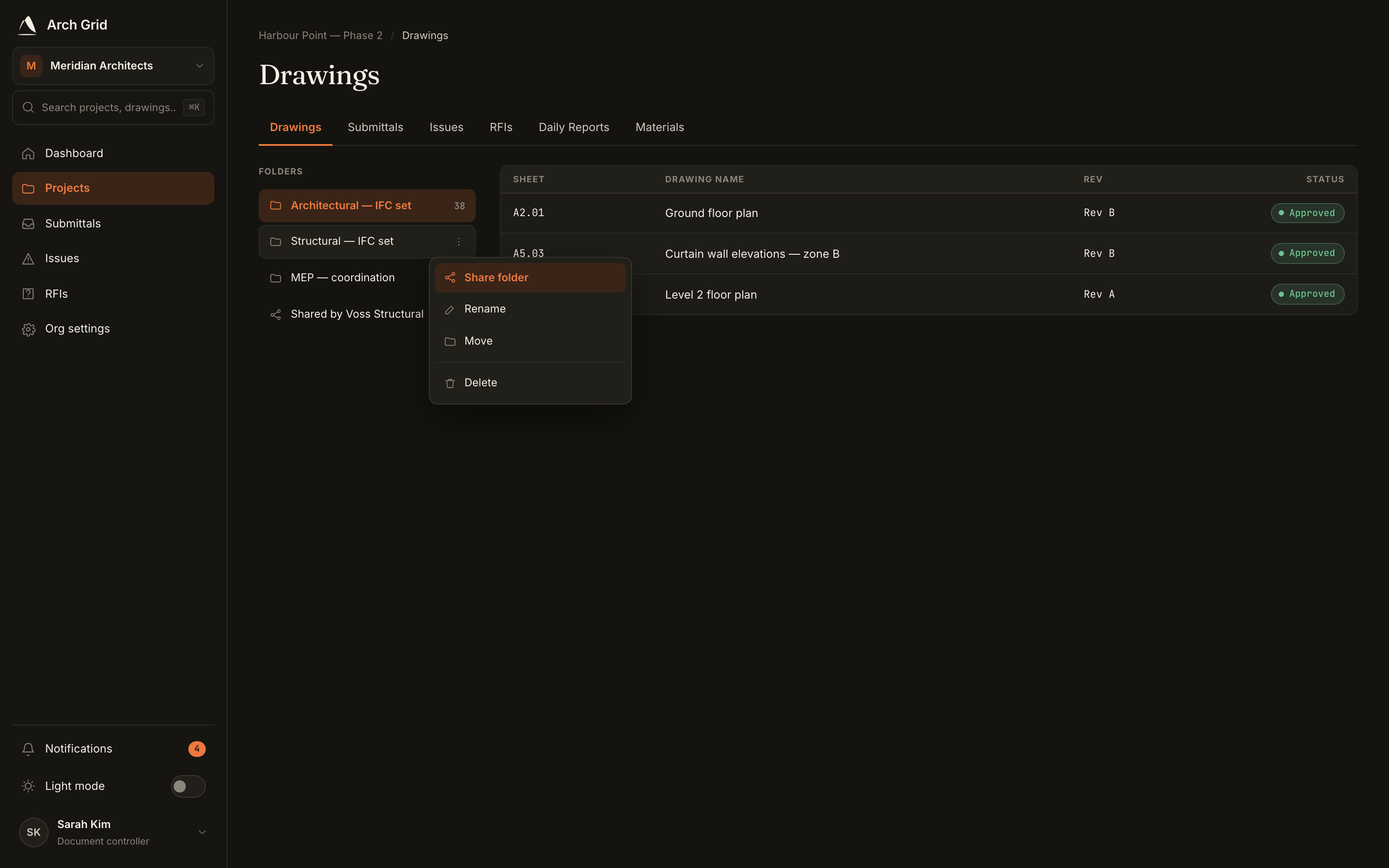
The Share folder menu item. - 3
Pick which firms to share with
The dialog lists the other firms on the project. Click Share next to each firm you want to give access to; the button flips to Shared. Click Done when you're finished.
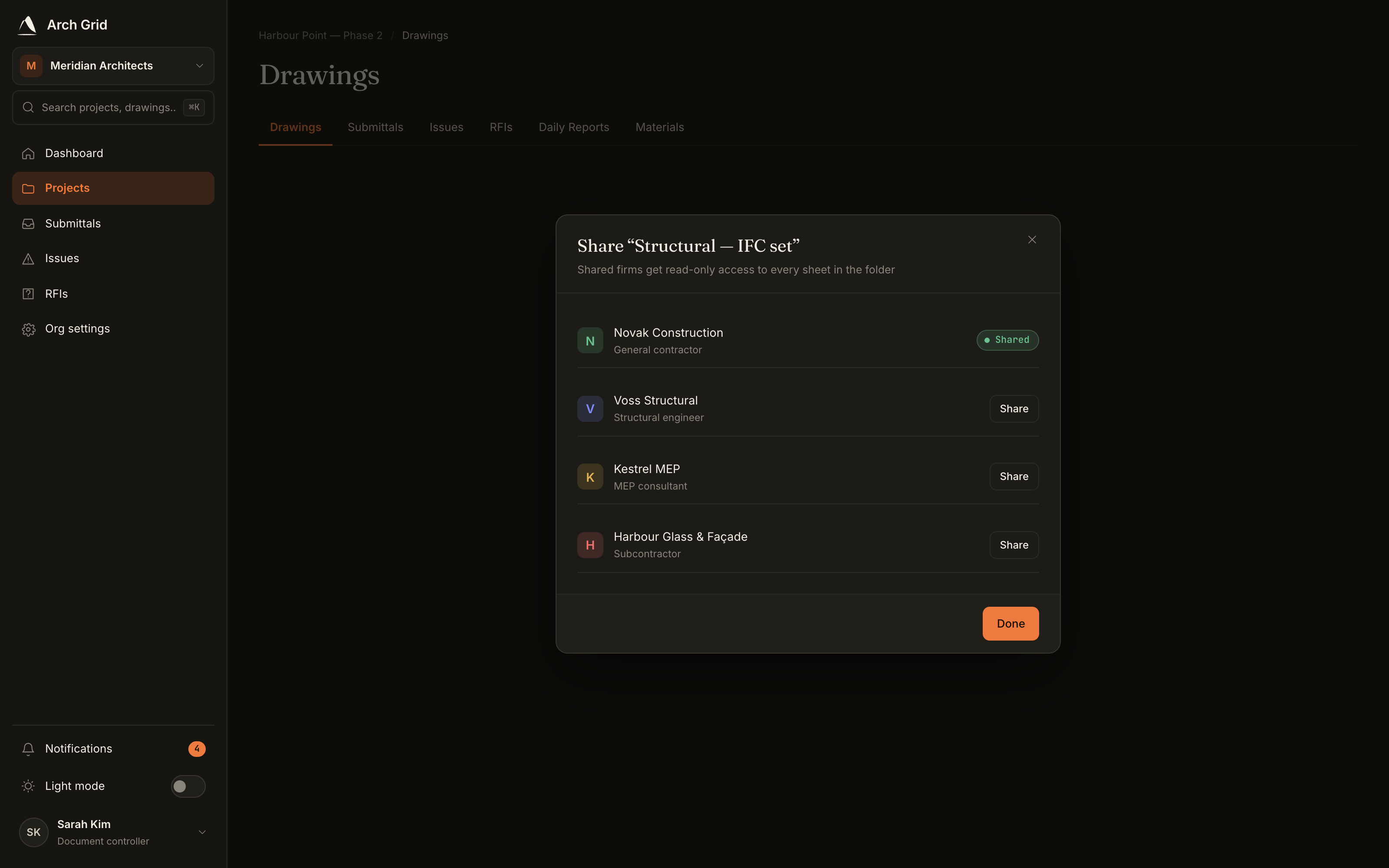
Choosing firms in the folder-share dialog. NoteOnly an owner or admin of the folder's firm can change its sharing. You can only share with firms already on the project. - 4
What the other firm sees
Members of the firms you shared with get a Shared with you section in their drawings browser, holding your folder read-only. They can open and mark up the sheets and file RFIs or issues on them, but they can't edit, move or submit your drawings.
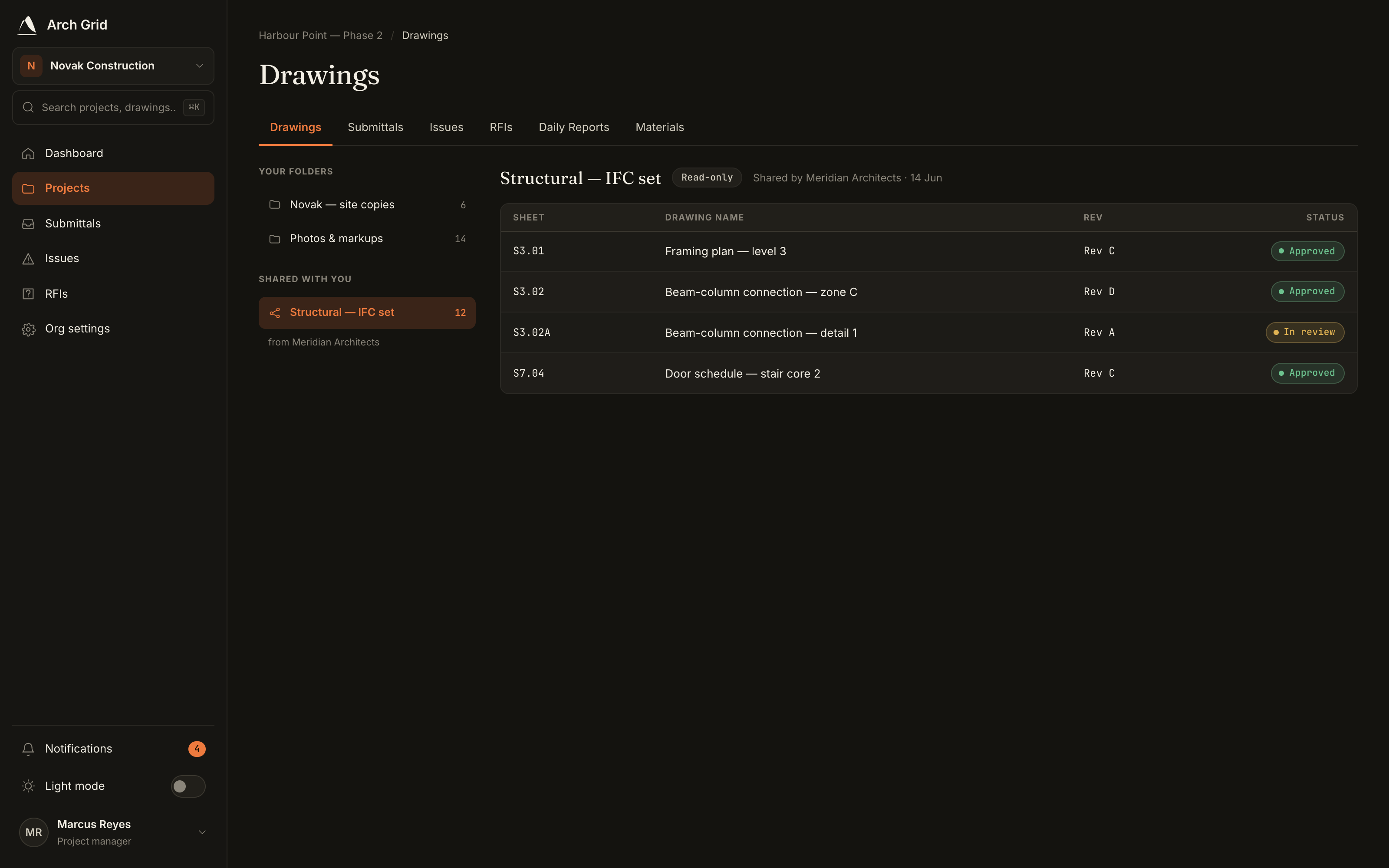
The recipient firm's Shared with you section.