Log an internal site issue
Internal issues are field tickets your team raises and closes within your own organization, visible only to your firm. Every issue is pinned to a spot on a drawing so there's no ambiguity about where the problem is.
- 1
Start a new issue
Go to Issues and click New issue. Since issues are captured by marking up a drawing, pick the project and click Open drawings to open its sheets.
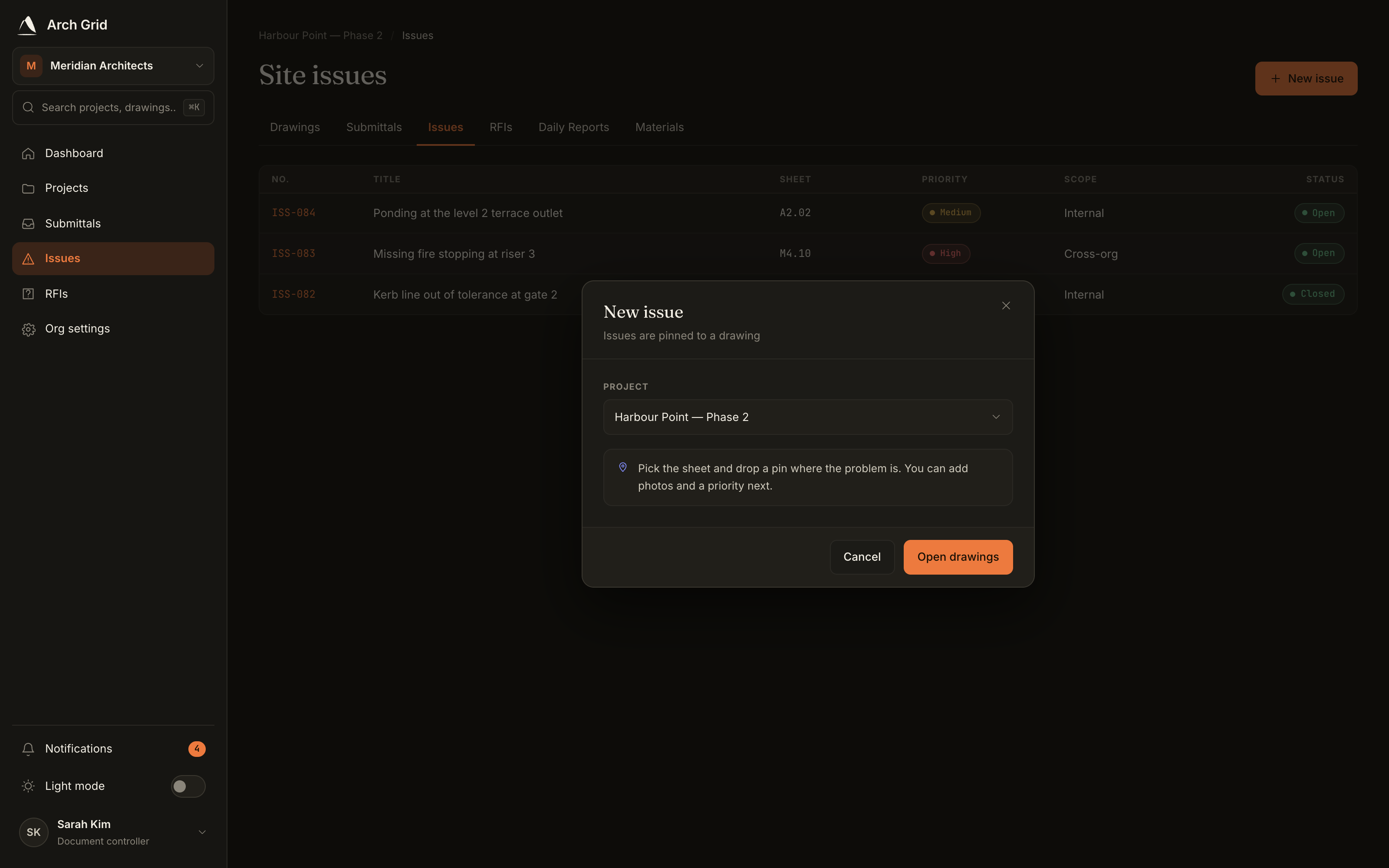
The New issue dialog. - 2
Pin it on the drawing
Drop a pin, or draw a box, arrow or cloud, on the exact spot. A compose panel opens at that marker. If your project also has cross-org trades set up, set the scope to Internal.
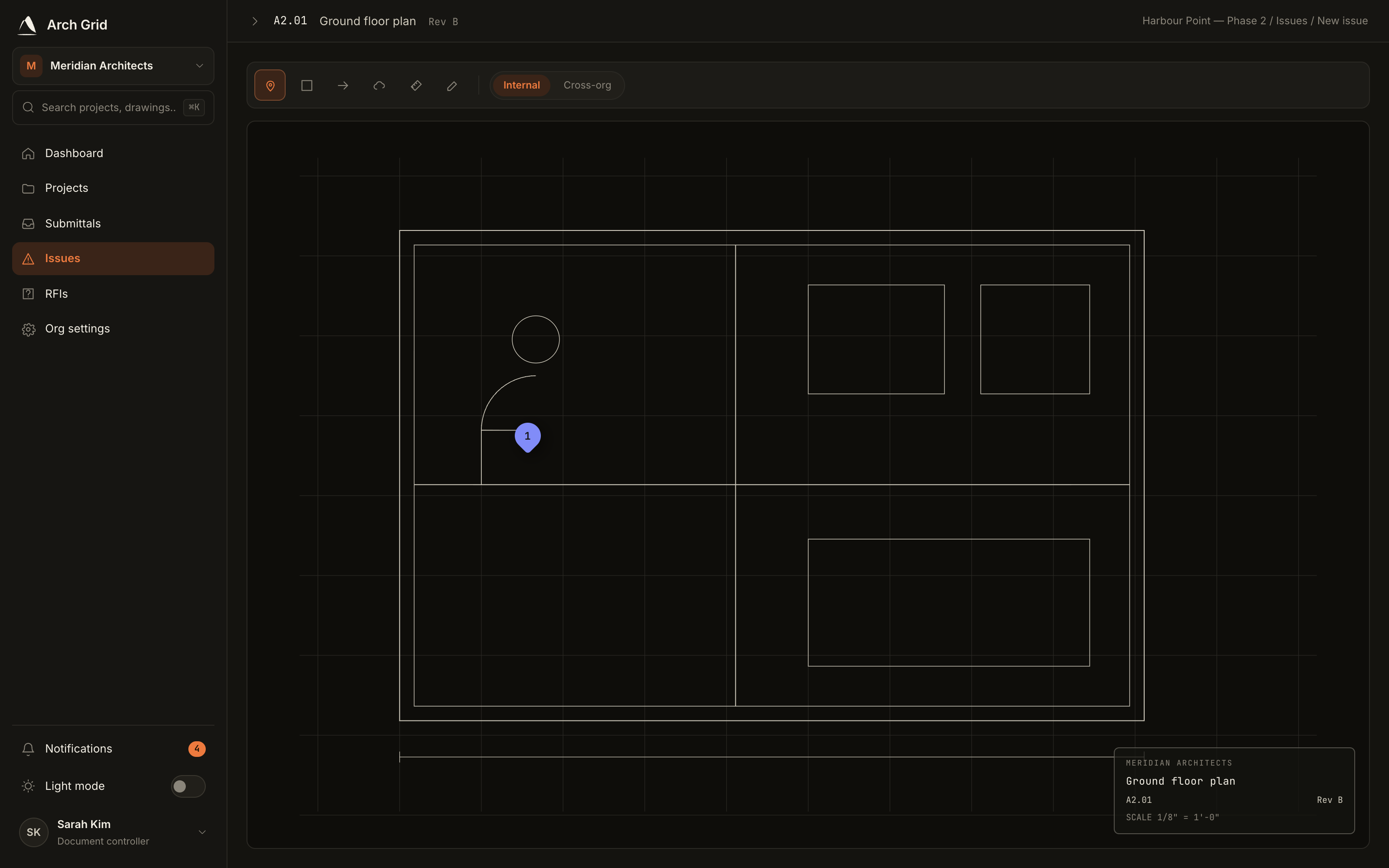
Marking up the drawing to place the issue. - 3
Describe the issue
Set a Priority (Low, Medium, High or Critical), a Title (what's wrong), and a Description of what's needed to fix it. Optionally assign it to a teammate, group it under an Area, and attach a before photo. Click File issue.
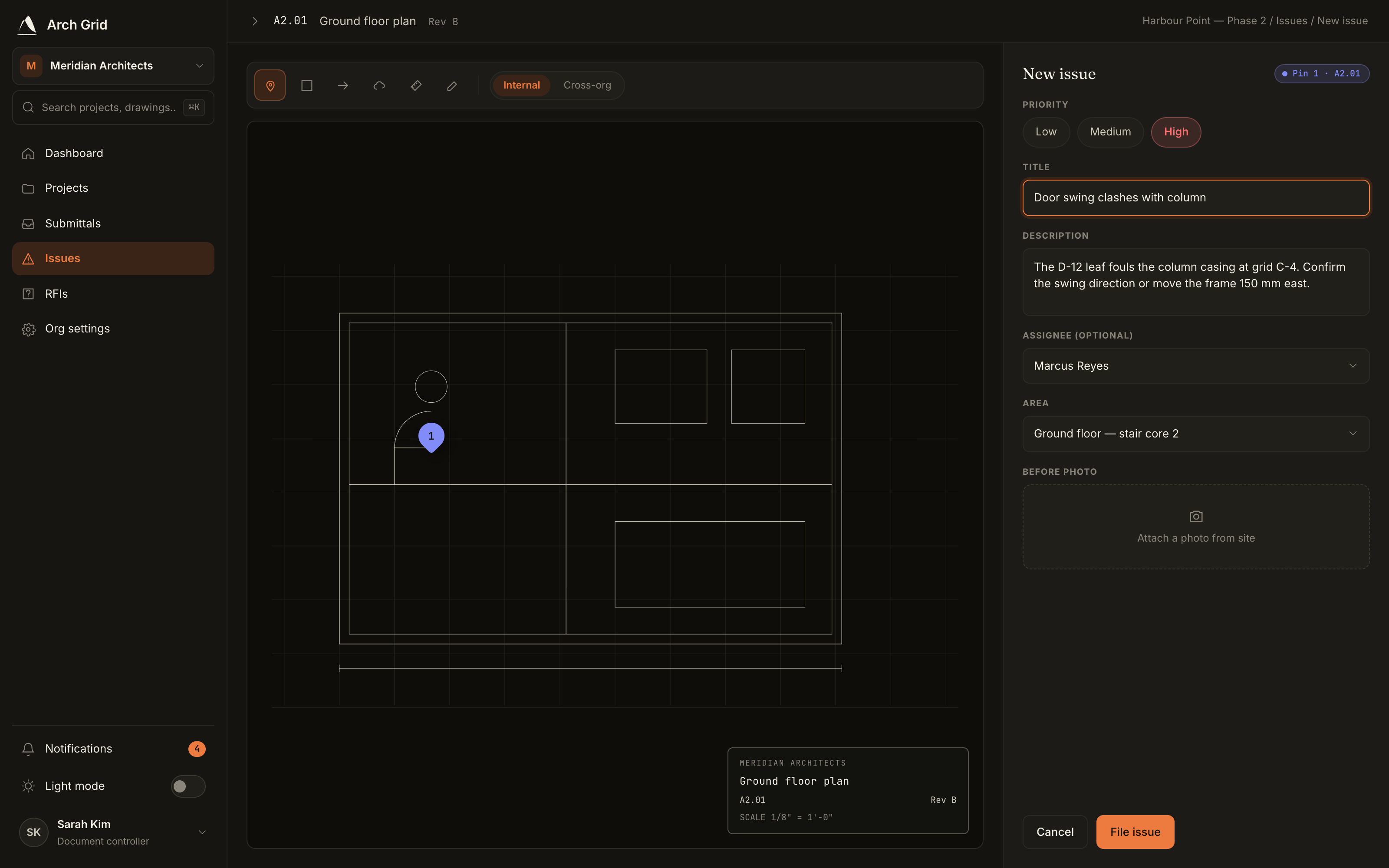
The issue compose panel. - 4
Work it through to closed
On the issue, use Start work, then Mark resolved when the fix is done, then Verify & close. The ball-in-court shows who it's waiting on, and you can reassign it inline.
NoteWhoever resolves an issue can't close their own work. The raising party verifies and closes it, so a fix is always confirmed by someone else.