Invite a teammate and connect another firm
Two different things share this guide. Inviting a teammate adds a person to your own organization. Connecting a firm links a separate company so you can work together on a project. A second person or firm in your trial is one of the strongest signs a team is getting value.
- 1
Invite a teammate to your organization
Go to Settings → Invites and click Invite teammate. Enter their Email and pick an Org role: Member (works on the projects they're added to), Admin (manages members, projects, invites and billing), or Billing.
Optionally tick the projects to add them to right away, then click Send invite. They get an email link to join your workspace.
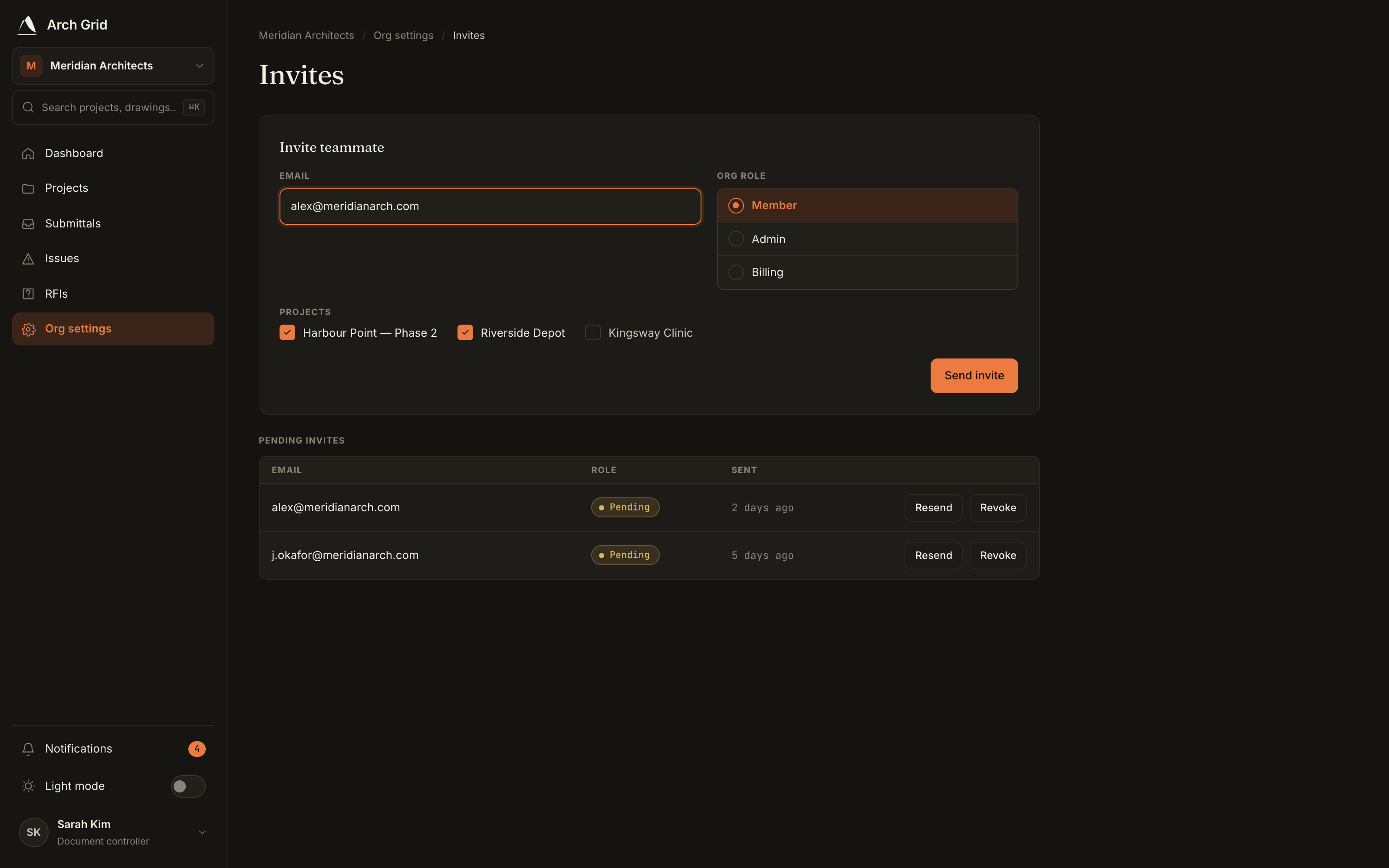
The invite composer with email and org role. NoteOnly owners and admins can send invites. A pending invite shows in the table with a Resend and Revoke option until it's accepted. - 2
Share your connection code
To work with a separate company (a GC, an architect, a trade), go to Settings → Connection. Your Connection code is shown there; click Copy and send it to the other firm.
Sharing the code is the invitation, there's no separate accept step. If a code leaks, use Rotate to invalidate it; firms already on your projects keep their access.

The connection code with Copy and Rotate. NoteYour organization has one connection code that works across all your projects. Only owners and admins can see or rotate it. - 3
Add a firm to your project
Open a project's Participants and click Add a firm. Paste the other firm's Connection code and click Look up. Confirm the firm, add an optional Trade label, and click Add to project.
They appear in the participants list immediately and can start collaborating on that project.
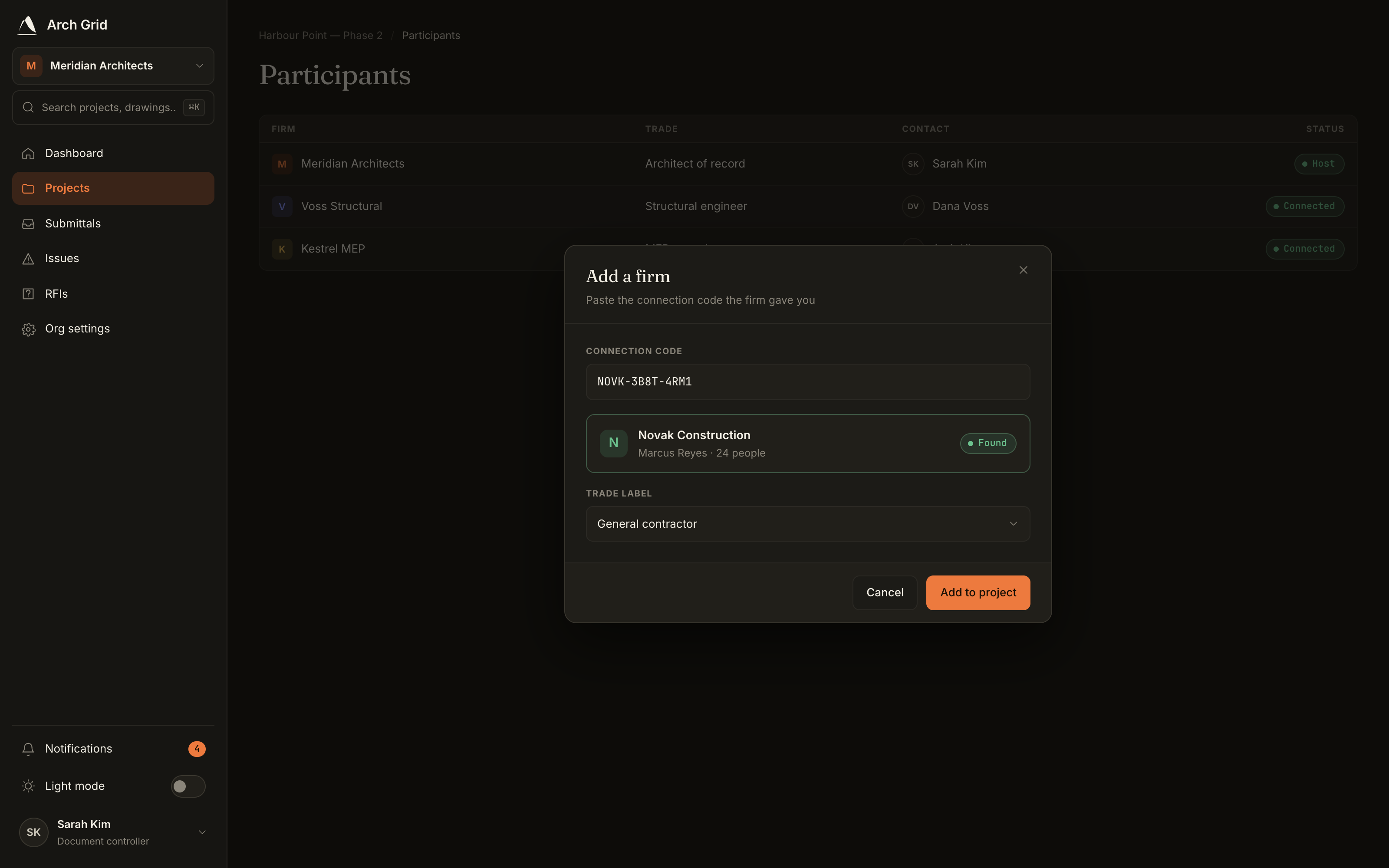
Adding a firm by pasting its connection code. TipParticipation is per-project. Add the same firm's code on each project you want them on, so a firm never sees a job it wasn't invited to.